What is Google Docs?
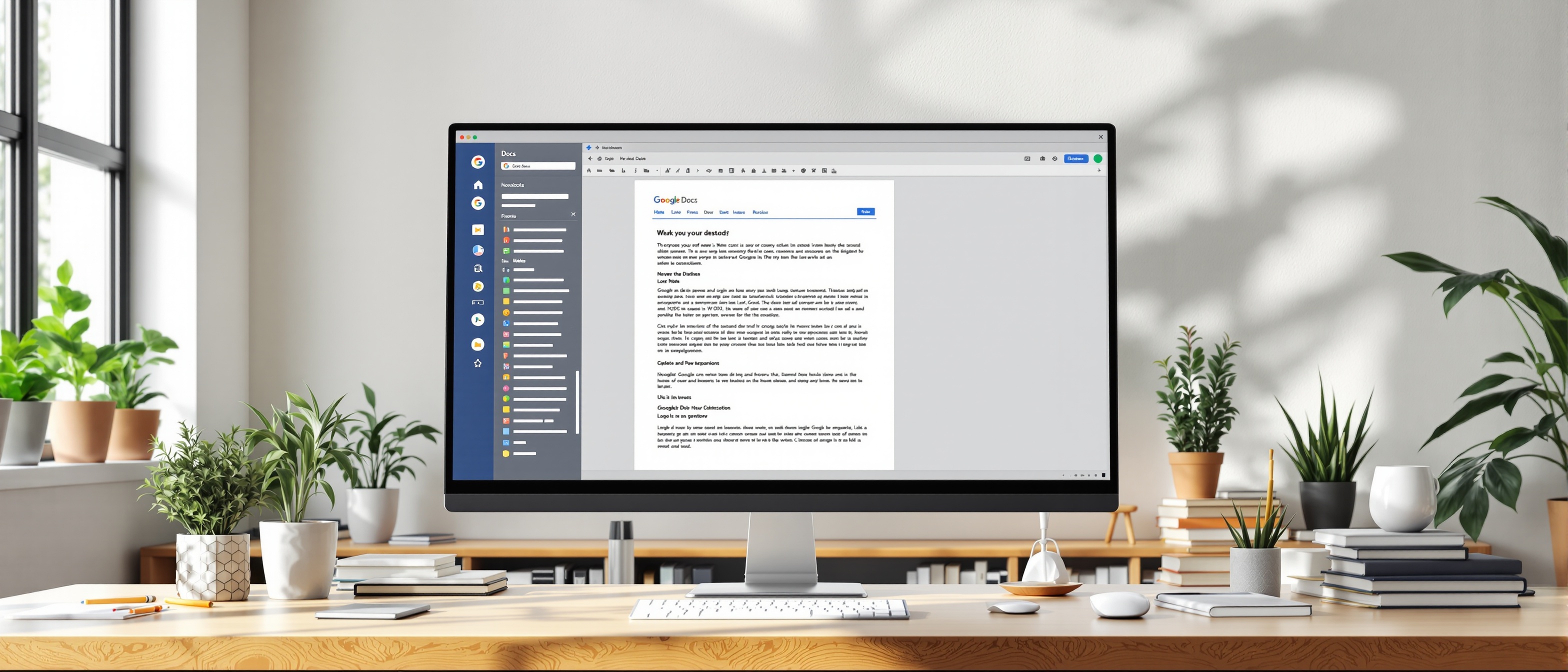
Google Docs is a free, cloud-based word processor included in Google Workspace for Education. Unlike Microsoft Word or Pages, Google Docs lives entirely online — which means documents are always saved, always accessible from any device, and can be shared and collaborated on instantly with students, parents, and colleagues.
Cloud-Based
No software to install. Access from any browser on any device, anywhere.
Real-Time Collaboration
Multiple people can edit simultaneously. See who's typing and where.
Free with Google
Included free with any Google account or Google Workspace for Education license.
Key Interface Areas
Menu Bar
File, Edit, View, Insert, Format, Tools, Extensions, Help — all features organized into dropdown menus.
Toolbar
Quick access to the most-used formatting tools: font, size, bold, italic, alignment, lists, and more.
Document Area
The white page where you type and format your content. Click anywhere to position your cursor.
Share Button
Top-right button to invite collaborators, set permissions, and generate shareable links.
Comment Threads
Inline comment bubbles appear in the right margin, allowing threaded discussions tied to specific text.
Document Outline
Left sidebar showing clickable navigation based on heading styles in your document.
6 Things Every Teacher Should Know
Auto-Saves Always
Every change is saved automatically to Drive within seconds — no Ctrl+S needed. Look for "All changes saved" near the top.
Version History = Your Safety Net
Every document has a full edit history. Open File > Version history any time to undo anything or see who changed what.
Real-Time Collaboration
Multiple people can edit the same document simultaneously. Each person appears as a colored cursor with their name.
Works Everywhere
Access Google Docs from any device with a browser — phone, tablet, or computer. No software to install.
Multiple Export Formats
Download as PDF, Microsoft Word .docx, plain text, HTML, and more via File > Download.
Offline Mode Available
Enable offline access via Settings to keep editing without internet — changes sync when you reconnect.
Ready to Go Deeper?
Use the tabs above to explore the complete Menu Reference, step-by-step Teacher Use Cases, and Advanced Features like Voice Typing, Citations, and Add-ons.