
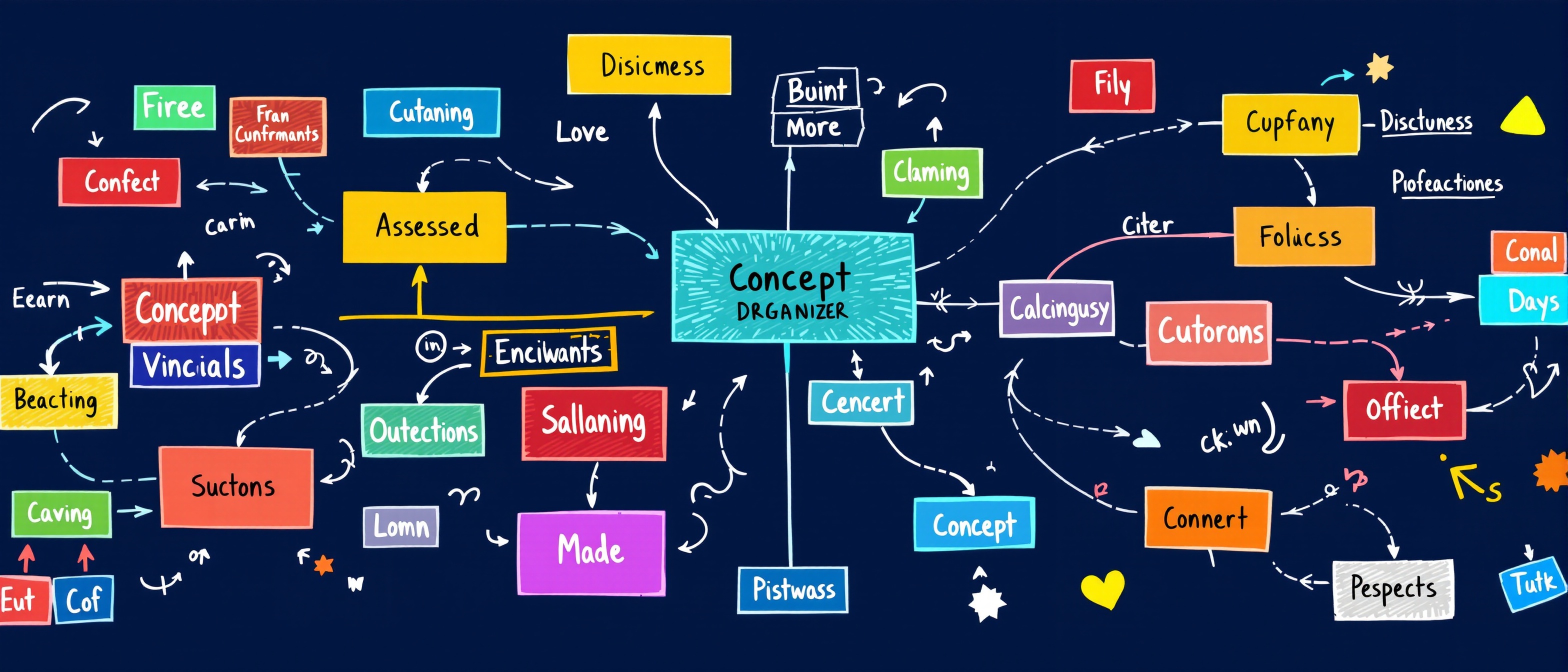
What is Google Drawings?
Google Drawings is a free, cloud-based vector drawing and diagramming tool included in Google Workspace for Education. It's the tool you reach for when you need to create something visual that isn't a document, spreadsheet, or slide — graphic organizers, labeled diagrams, concept maps, timelines, certificates, and classroom visual displays. What makes it especially powerful for teachers is its deep integration with the rest of Google Workspace: Drawings can be embedded live inside Google Docs, Slides, and Sites, updating everywhere when you edit the source.
Visual Organizers
KWL charts, concept maps, T-charts, Venn diagrams, story maps, timeline arrows — all built from shapes and connectors.
Annotated Diagrams
Insert a base image, add text labels and arrows on top — create science diagrams, geography maps, and anatomy labels.
Embeds Everywhere
Insert a live-linked Drawing into Docs or Slides — update the Drawing once and all documents refresh automatically.
Key Interface Areas
Menu Bar
File, Edit, View, Insert, Format, Arrange, Tools, Help — all features organized in dropdown menus.
Toolbar
Quick access to select, line tools, shape gallery, text box, image insert, and zoom controls.
Canvas
The white drawing area. Click to place objects, drag to move, resize with corner handles.
Selection Tool
The arrow tool (default) lets you select, move, and resize objects on the canvas.
Line Tool
Draw lines, arrows, curves, and connector lines between shapes.
Shape Gallery
Access all basic shapes, arrows, callout bubbles, and flowchart symbols via the toolbar.
6 Things Every Teacher Should Know About Drawings
Embed Drawings in Docs
Insert your Drawing into a Google Doc via Insert > Drawing > From Drive. Link it to source so updating the Drawing automatically refreshes it in the Doc.
Use Connector Lines
Connectors (Insert > Line > Connector) snap to shape edges and re-route automatically when you move shapes — perfect for concept maps and flowcharts.
Group Everything
Group shape + label pairs (Ctrl+Alt+G) immediately after creating them. Grouped objects move together — saves you hours of accidental scattering.
Annotate Images Directly
Insert a base image (diagram, map, photo), send it to back, then add text boxes and arrows on top to create labeled annotation diagrams.
Mask Images to Any Shape
Click an image, then the Crop dropdown arrow in the toolbar and choose "Mask image" — crop photos into circles, speech bubbles, stars, or any custom shape.
Publish to Web for Embedding
File > Publish to the web generates a live-updating embed code. Paste it into your Google Sites class page — no downloads or re-uploading needed.
Ready to Go Deeper?
Explore every menu feature, 5 teacher workflows for creating visual classroom materials, and advanced techniques like connector lines, image masking, and live embedding.